Connect your bank alerts
Your bank already emails you when you spend. Forward those emails to Cova and your transactions appear on their own — no bank login, no app permissions.
1. Copy your capture address
In Cova, open More → Auto-capture bank alerts, tap Reveal, then Copy. It looks like [email protected]. Keep it private — anyone who has it can add transactions to your account.
2. See it work — 30 seconds, on your phone
Do this before anything else. Open your email app, find any recent bank alert, and forward it to the address above. Within about a minute it appears on your Cova timeline, already categorised.
There is nothing to set up for this — you are just sending an email. It works on a phone, a tablet, anywhere you read your mail.
Under More → Auto-capture bank alerts you will also see it listed under recent activity, which is how you can tell capture is reaching you at all.
3. Then make it automatic — about 2 minutes, on a computer
Forwarding one alert captures that one transaction. To have every future alert land on its own, do the three steps below once. You need a computer for this — Gmail cannot create forwarding rules or filters in its phone app, only at mail.google.com in a browser. The same is true of most providers.
No computer? Use your phone’s browser
You can do the whole setup from a phone — not in the Gmail app, but in a mobile browser asking for the desktop version of the site.
- iPhone (Safari): go to mail.google.com, tap aᴀ at the left of the address bar, then Request Desktop Website.
- Android (Chrome): go to mail.google.com, tap ⋮ (top right), then tick Desktop site.
The full Gmail settings then load, and the steps below work exactly as written. Pinch to zoom — the buttons are small.
Stuck at any point? Just ask. Email [email protected] and we will walk you through it — or set it up with you, step by step. Cova is small enough that a real person reads every message, and we would far rather help you finish than have you give up on it. Tell us which email provider and which bank, and that is usually enough to sort it in one reply.
Fair warning: this works, but it is fiddly. The usual reason people think forwarding “didn’t work” is missing a Save or a confirmation step part-way through, which is easy to do on a small screen. Go slowly, and check each step saved before moving on. If you can borrow a laptop for two minutes, it is easier.
4. Add it as a forwarding address
Gmail
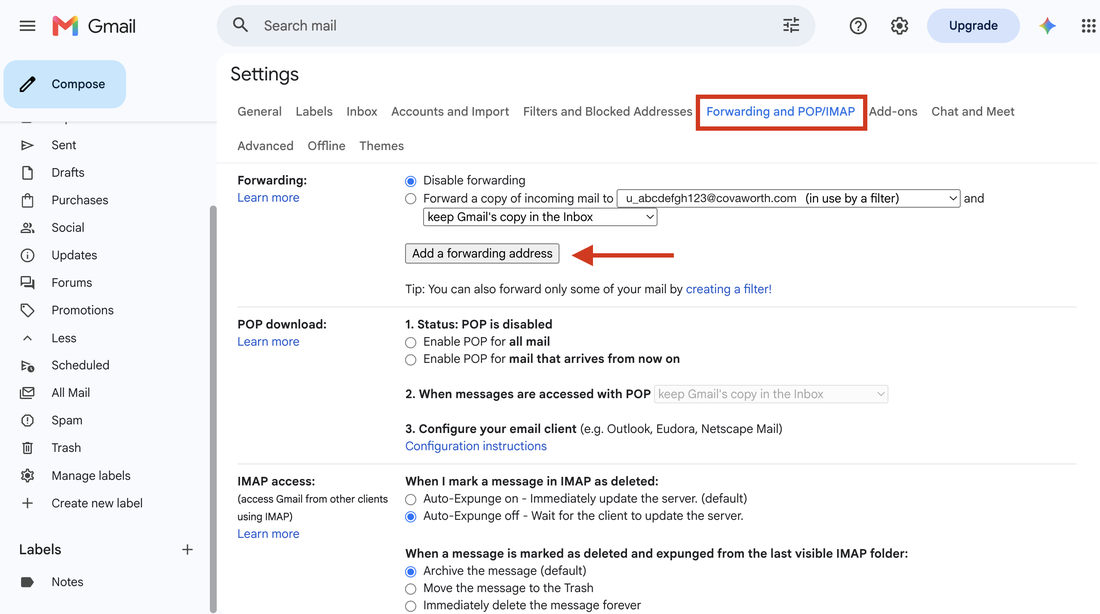
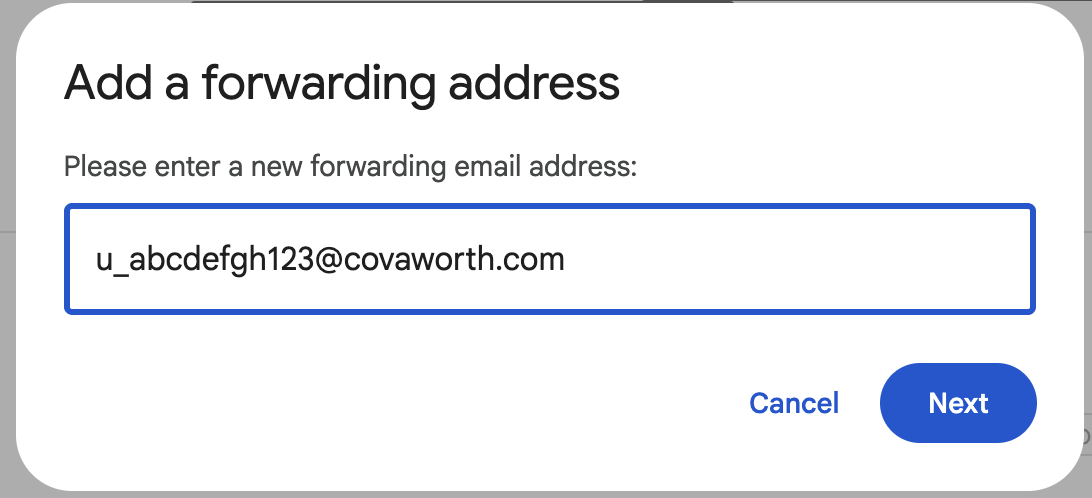
Settings (gear → See all settings) → Forwarding and POP/IMAP → Add a forwarding address → paste → Next.
Outlook / Hotmail
Do not use Settings → Mail → Forwarding. That switch forwards your whole mailbox, which is exactly what Cova is designed not to do. Instead go to Settings → Mail → Rules → Add new rule, set the condition to From your bank’s alert address, and the action to Forward to your Cova address. That forwards only those alerts, and needs no confirmation code.
iCloud Mail
icloud.com/mail → Settings → Rules → add a rule: If a message is from your bank’s alert address, Forward to your Cova address. Rules are only available on iCloud’s website, not in the Mail app.
Yahoo
Settings → More Settings → Mailboxes → your account → Forwarding. Heads up: Yahoo has at times restricted auto-forwarding to paid plans. If yours is greyed out, you have two options that cost nothing: forward each alert by hand as it arrives (see step 2 above), or use a free Gmail address for bank alerts and connect that instead. Email us if you’d like help deciding.
5. Confirm the code — it appears inside Cova
Outlook and iCloud rule users can skip this. A rule that forwards specific messages does not need a confirmation code — only Gmail’s “forward everything” setting does. If no code arrives within a few minutes and you set up a rule, you are already done: go and test it.
Your email provider sends a confirmation code to the address you just added. That address is Cova's mailbox, not yours, so you won't receive it by email.
Go back to More → Auto-capture bank alerts. The code appears there within a minute — tap check again if it hasn't yet. Paste it back into your email settings, or use the one-click confirm link if there is one.
6. Create one rule per bank
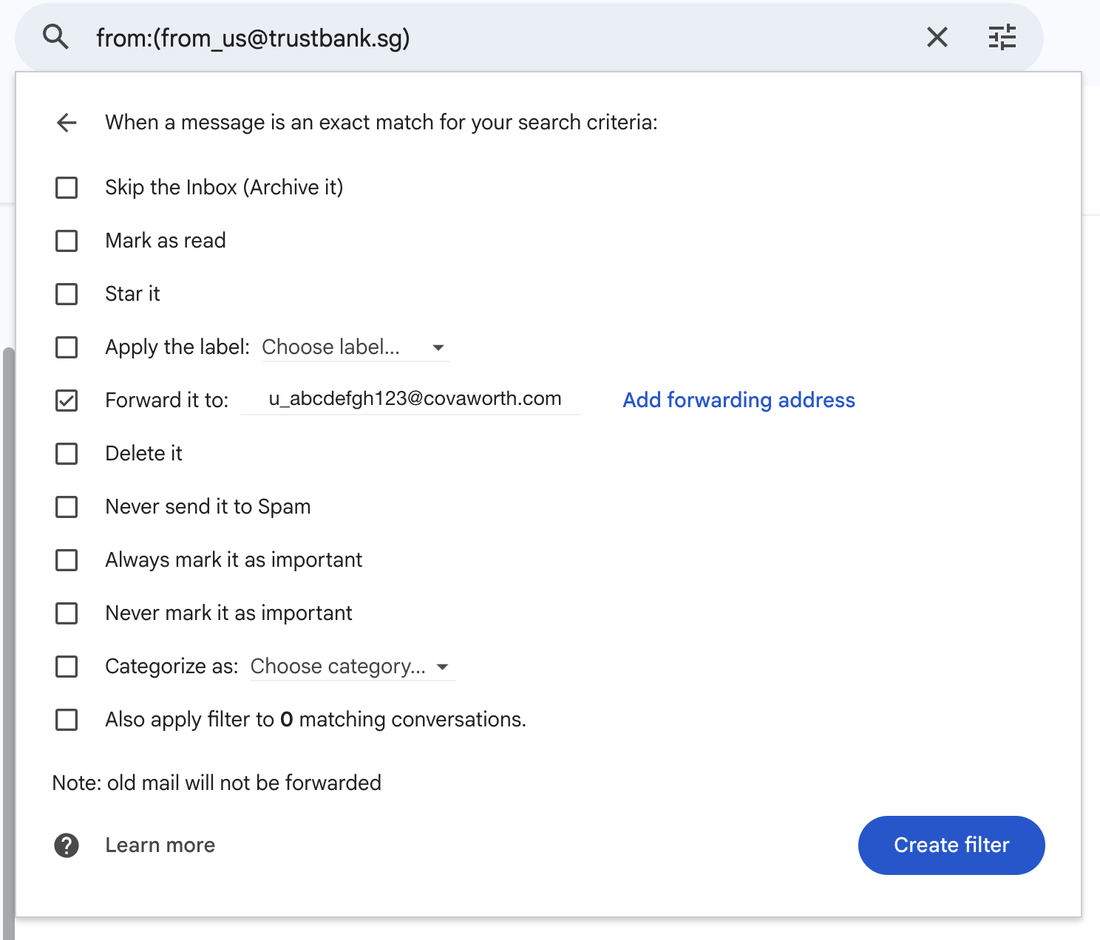
This is the step that decides what gets forwarded. Don't switch on "forward everything" — you only want bank alerts.
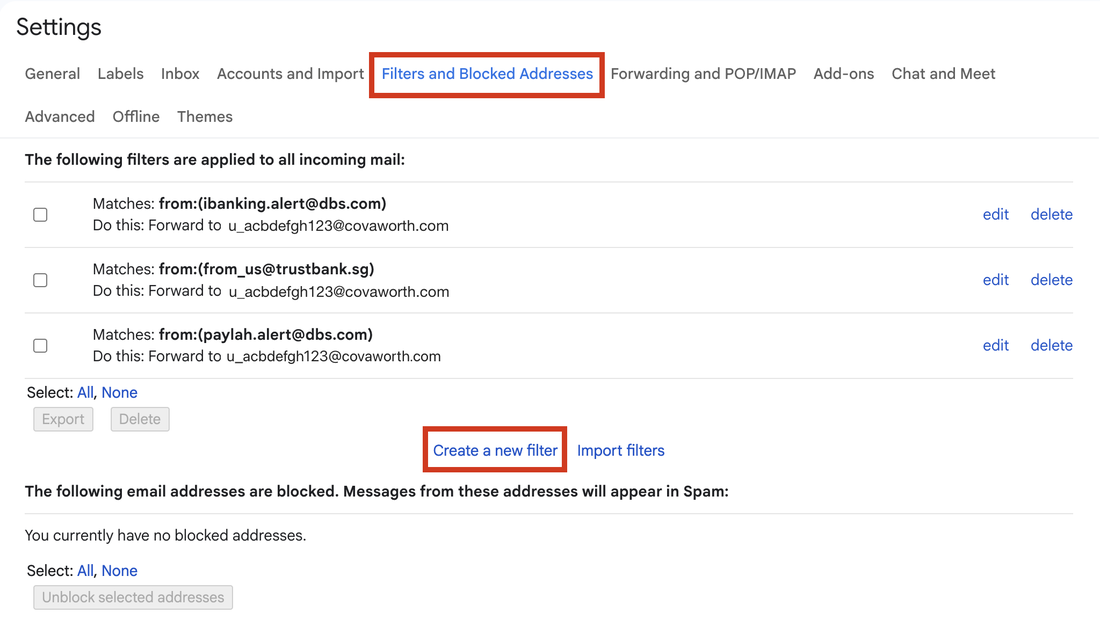
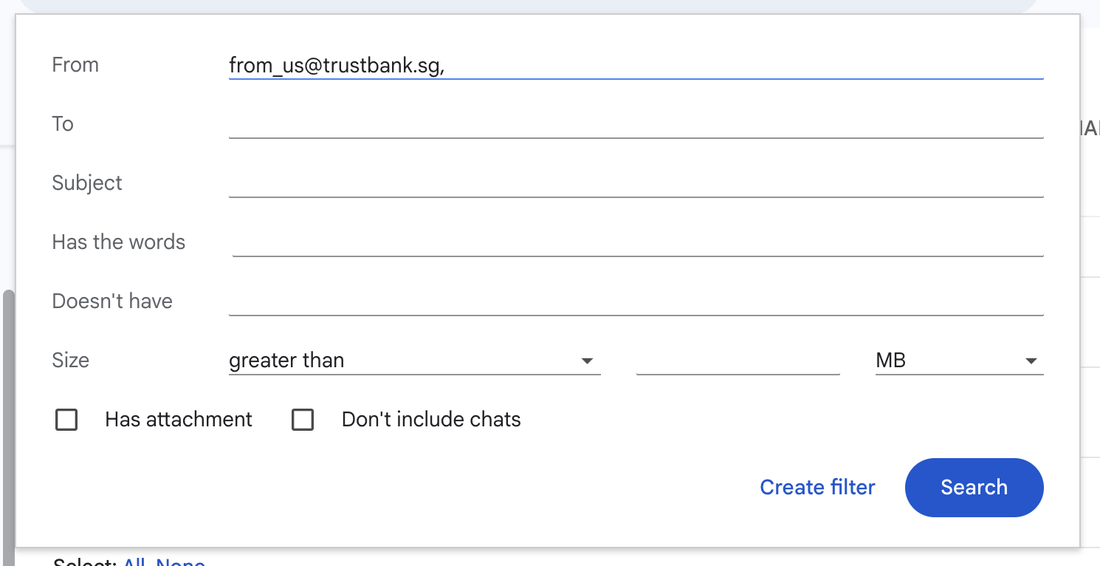
In Gmail: Filters and Blocked Addresses → Create a new filter → put one bank's sender in From → Create filter → tick Forward it to and choose your Cova address. Repeat for each bank.
Need the exact sender address for your bank? The bank filter recipes page lists the precise From: value for Trust, DBS/POSB, PayLah! and more — ready to copy.
Use a separate filter for each bank. Combining senders with commas — from:([email protected],[email protected]) — is accepted by Gmail, looks correct in the filter list, and then silently matches nothing at all.
If you must combine, use capitalised OR: from:([email protected] OR [email protected]). To check any filter really works, paste its search text into the Gmail search bar — if your alert isn't in the results, the filter can't fire.
Screenshots last checked: July 2026 (Gmail on a computer). Google moves things around from time to time — if your screen looks different, email [email protected] and we will update this page.
Which banks work
Cova reads alerts automatically from Trust, DBS/POSB iBanking and PayLah!, plus Grab e-receipts. Forwarding an unsupported bank is harmless — it arrives, isn't recognised, and shows up as "skipped" in your recent activity. Email us the alert and we'll add it.
What if my bank only sends SMS or a push notification?
Some banks and wallets never email you per transaction — they only buzz your phone. In Singapore that commonly includes OCBC and UOB card alerts, and app-only accounts like GXS, MariBank, Revolut, YouTrip, Wise, Amaze and SimplyGo. Auto-capture works by reading email, so there is nothing for it to read.
First, check before you assume. Many banks can email you as well as push — look in your banking app under Notifications, Alerts or Statements and turn on email alerts for card transactions. If you can switch that on, everything on this page works normally.
If it genuinely cannot email you, you have three quick options inside Cova:
- Type it. On the Add screen, write it the way you would say it — “12 lunch at kopitiam” — and Cova fills in the amount, category and date for you.
- Snap the receipt. Tap the camera on the Add screen and photograph the receipt. It reads the total, the merchant and the currency, including foreign ones.
- Import a statement once a month instead — see importing a file.
Most people end up mixing the two: alerts arrive on their own from the banks that email, and the odd cash or SMS-only payment gets typed in. It still beats entering everything by hand.
If nothing arrives
You do not have to work it out alone — email [email protected] with your email provider and bank, and we will help you get it working.
The Auto-capture screen shows recent activity at your capture address. That one list distinguishes "forwarding is broken" from "forwarding works but this bank isn't supported". Start there, then see Nothing is appearing.
Work email won't work. Google Workspace and Microsoft 365 administrators usually block external auto-forwarding. Use the personal address your bank alerts go to.